Files - PC
This document provides a detailed overview of the various steps for managing files and folders in the [Files] app, including creating, sharing, uploading, downloading, copying, moving, renaming, compressing, and viewing information.
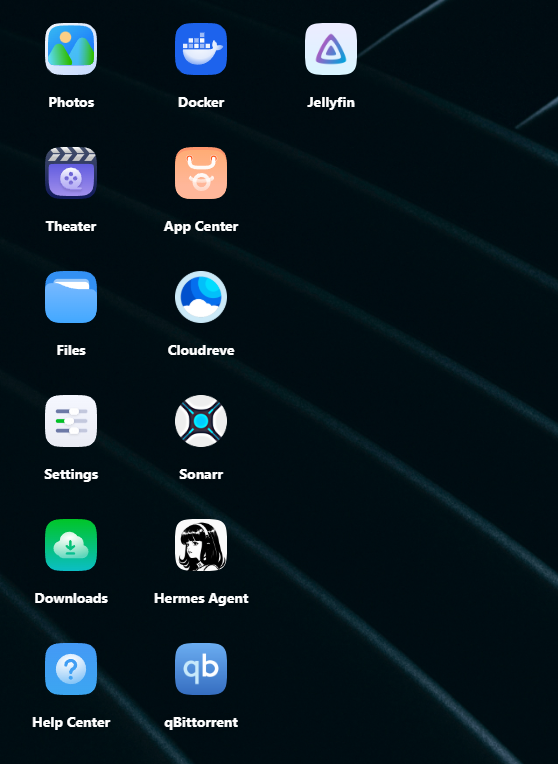
To access the [Files] page, tap “File Management” in the app module on the home screen, as shown in the figure below:
Create a New Personal Folder
Follow these steps:
-
Go to the [File Management] page and select the target directory under “My Files” in the sidebar.
-
Do one of the following:
-
Click the “New Folder” button in the upper-left corner of the page.
-
Click the “New Folder” icon in the middle of the page; this option is available only when the folder is empty.
-
Right-click in an empty area of the page and select “New Folder.”
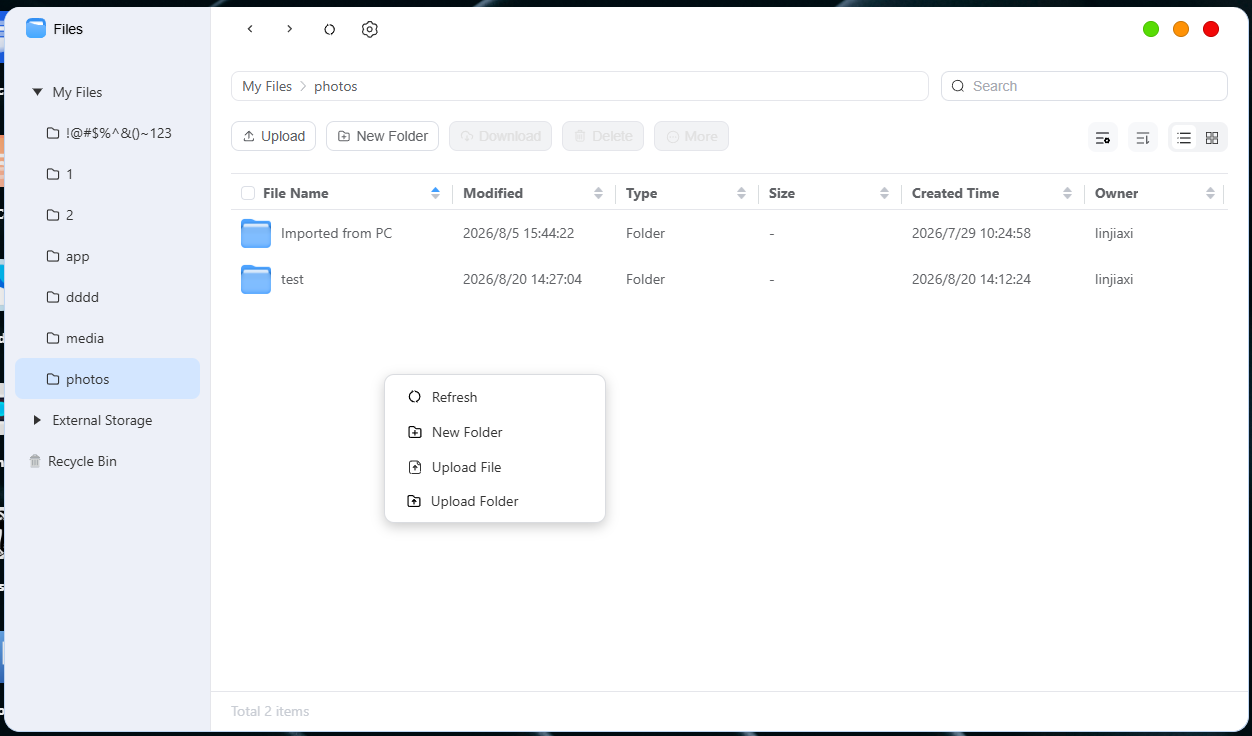
- In the pop-up window, enter the folder name, confirm its location, and then click “OK.”
Upload Files/Folders
Follow these steps:
-
Go to [File Management] and select the target directory.
-
Perform one of the following actions:
-
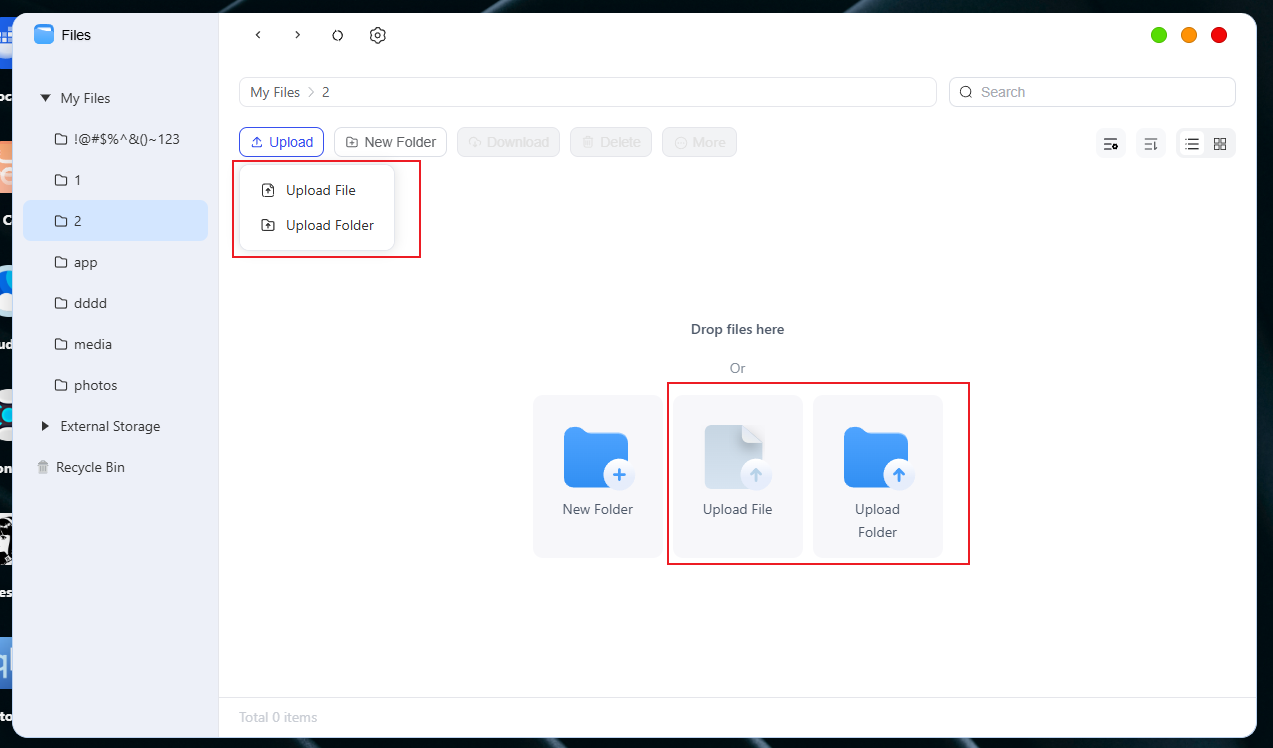
Click the “Upload” button in the upper-left corner of the page and select “Upload File” or “Upload Folder.”
-
Click the “Upload File” or “Upload Folder” icon in the middle of the page; this option is available only for empty folders.
-
Right-click in a blank area of the page and select “Upload Folder” or “Upload File.”
Since top-level directories require a specific file storage location, you must select a storage pool when creating a new top-level directory.
-
In the pop-up window, select the file or folder you want to upload from your local computer, then click “Confirm.”
-
Once the upload is complete, refresh the current directory to view the file.
Download File/Folder
Follow these steps:
-
In [File Manager], select one or more target files or folders.
-
Right-click and select “Download.”
-
In the pop-up window, select the destination path on your local device and click “OK.”
-
Once the download is complete, go to the specified local path to view the files.
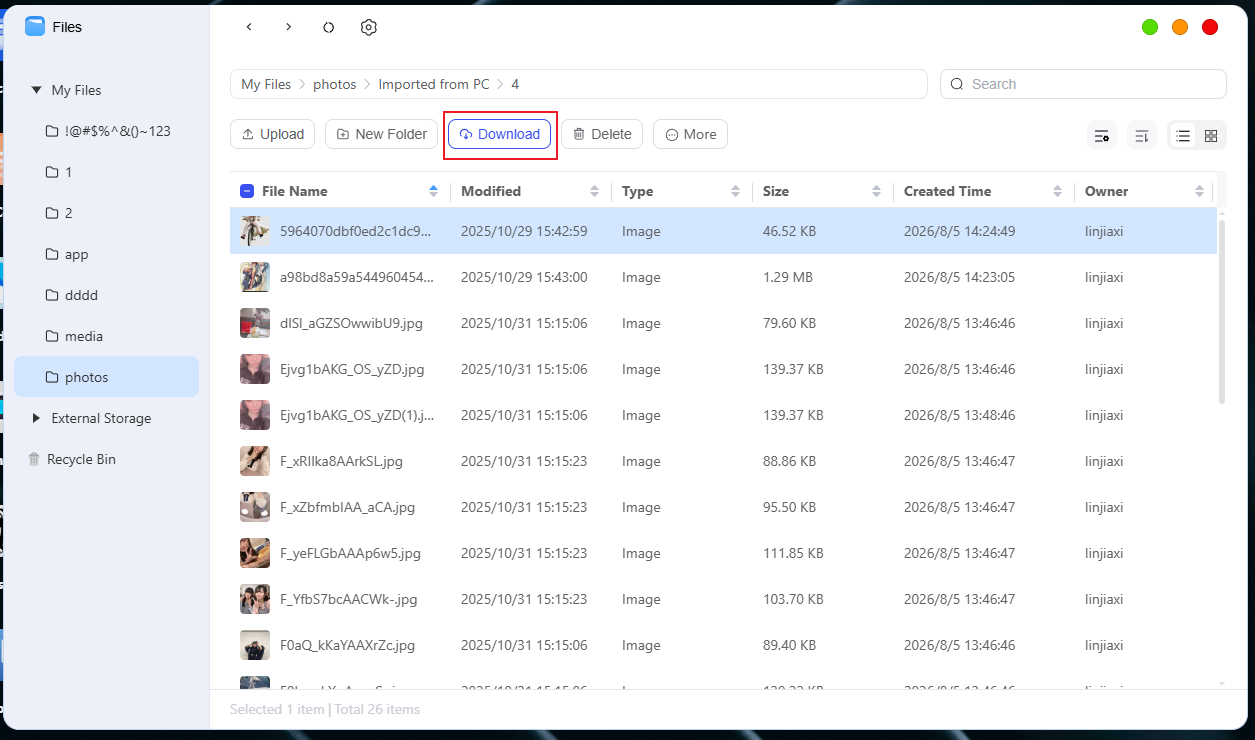
Note: If you download a folder, it will be automatically compressed.
Copy/Move Files or Folders to a Specified Location
Follow these steps:
-
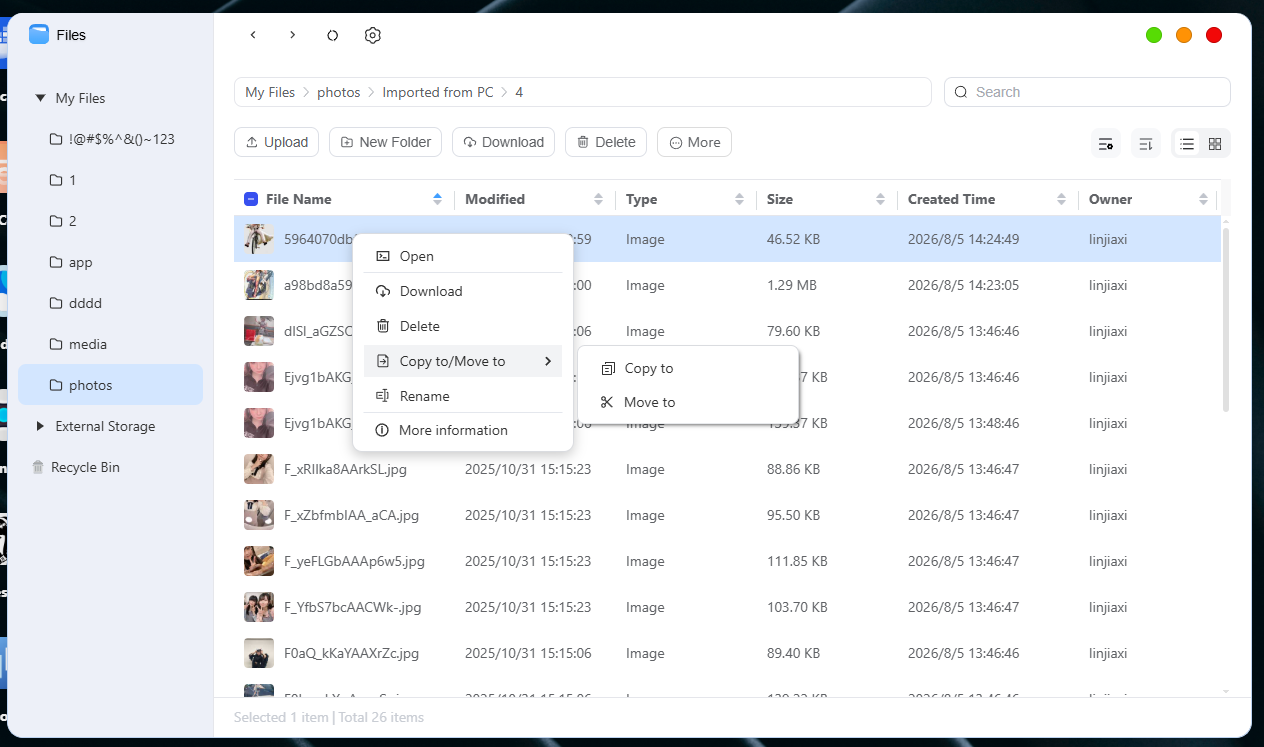
On the [File Management] page, select the target file or folder.
-
After selecting the file or folder, right-click it and choose “Copy To/Move To” from the options in the pop-up window.
-
Next, select the destination folder or subfolder (you can also create a new folder) where you want to copy or move the file, then click "OK."
-
The file or folder will be successfully copied or moved to the specified location.
Rename a File or Folder
Follow these steps:
-
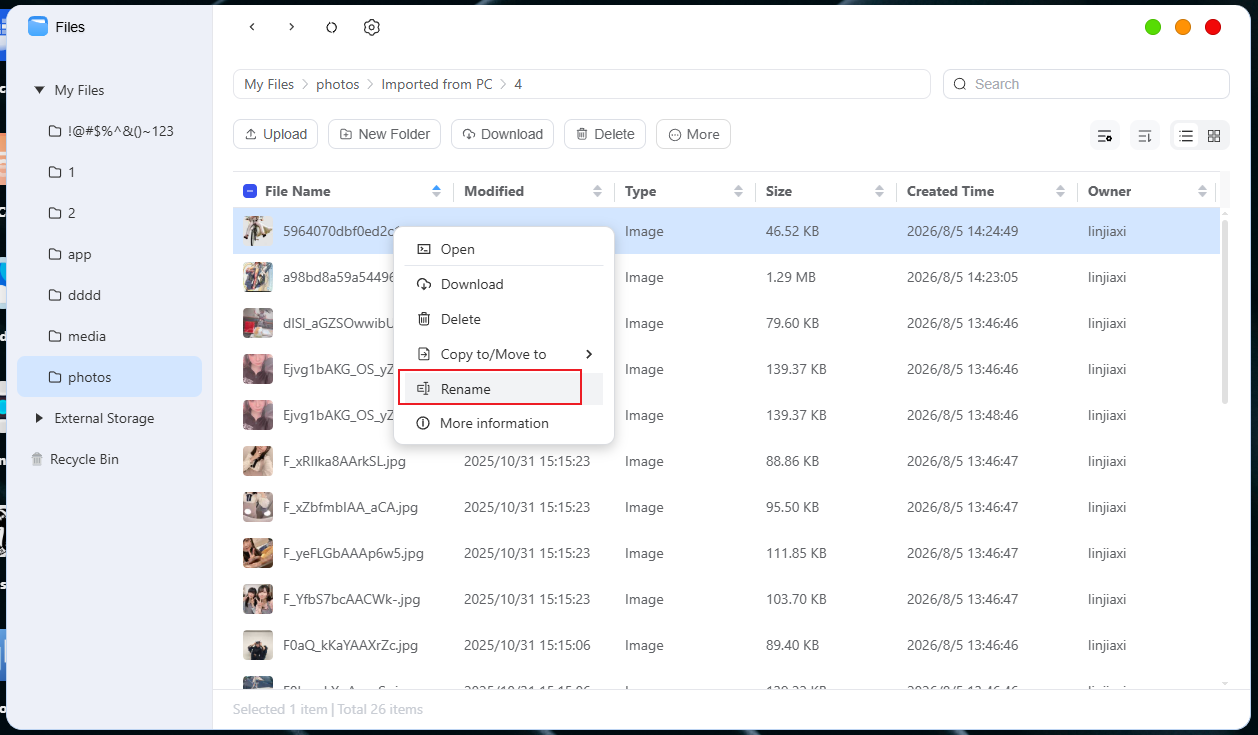
On the [File Management] page, select the target file or folder.
-
Right-click and select "Rename" from the pop-up menu.
-
Enter the new name, then click "OK."
Delete a File or Folder
Follow these steps:
-
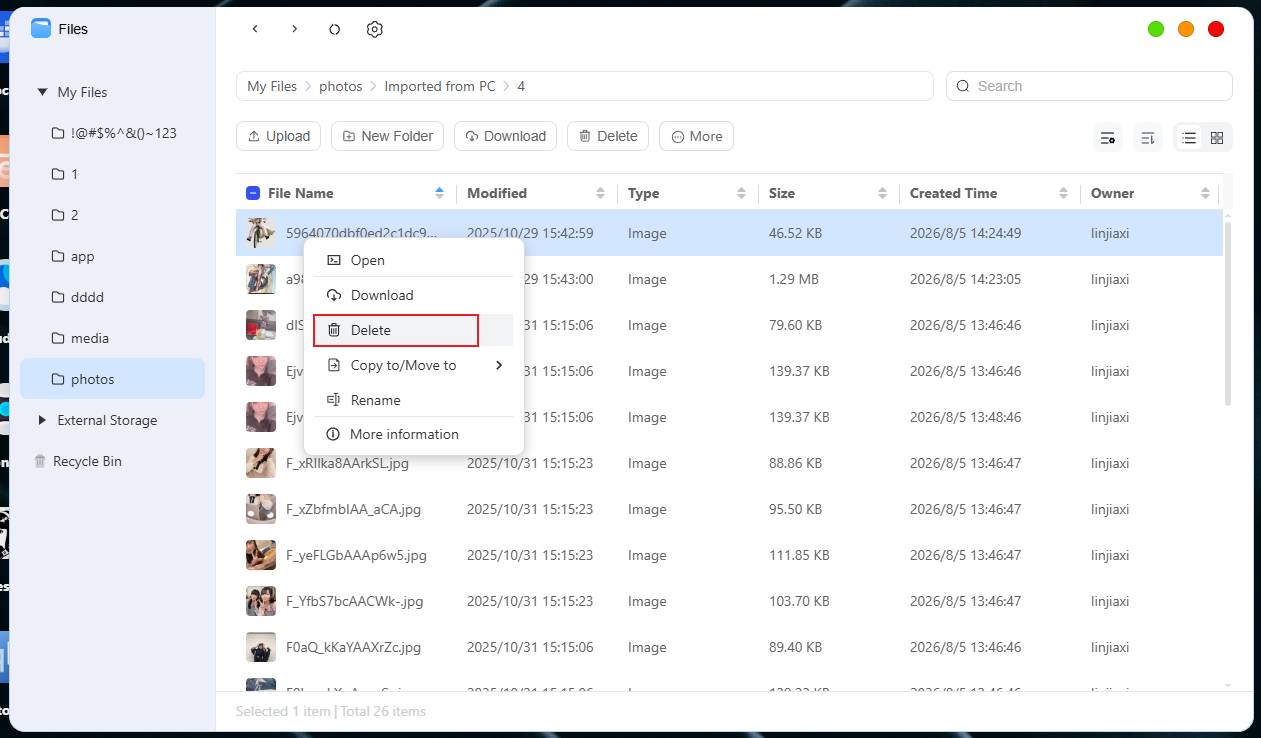
On the [File Management] page, select the target file or folder.
-
Right-click and select "Delete" from the pop-up menu.
-
Click "Confirm Deletion"; by default, the deleted file will be moved to the Recycle Bin.
View file or folder information
Follow these steps:
-
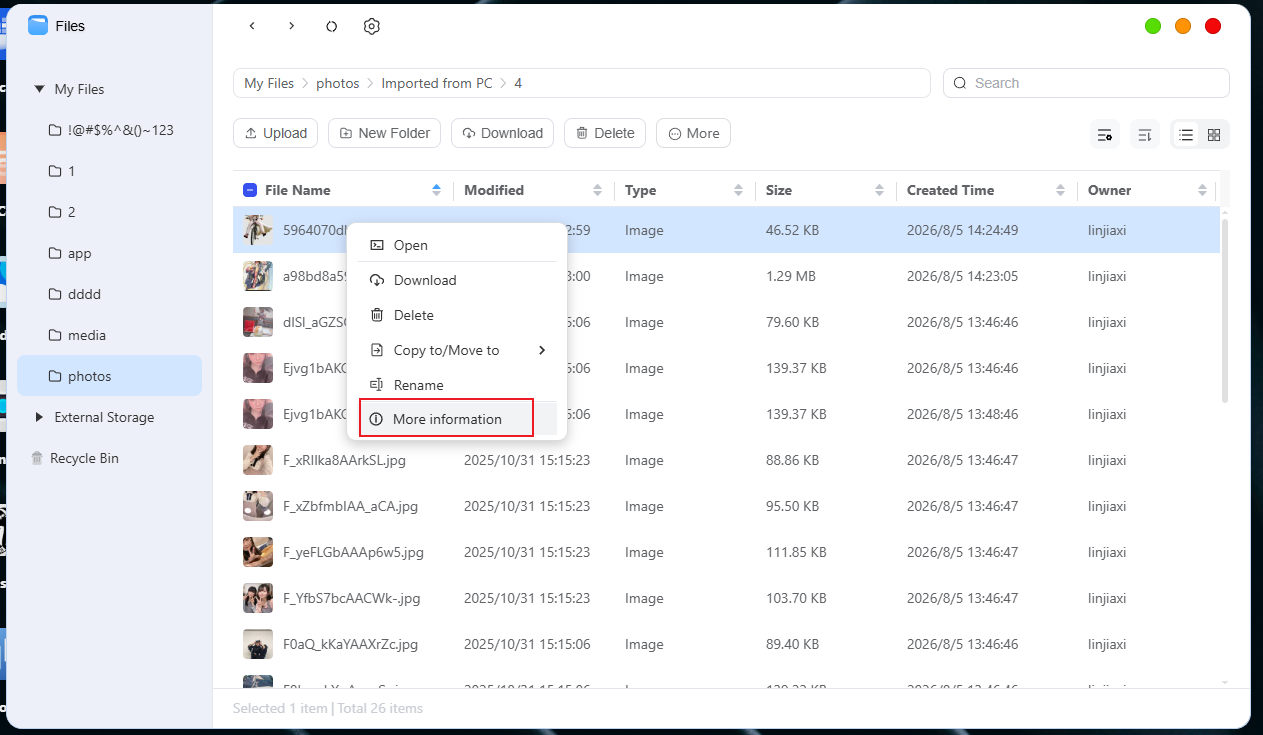
On the [File Management] page, select the target file or folder.
-
Right-click and select "Details" from the pop-up menu.
-
In the window that appears, you can view the details of the file or folder.
File Search Feature
Using the search feature built into the "File Manager" app, users can efficiently locate the files or folders they need. Follow these steps:
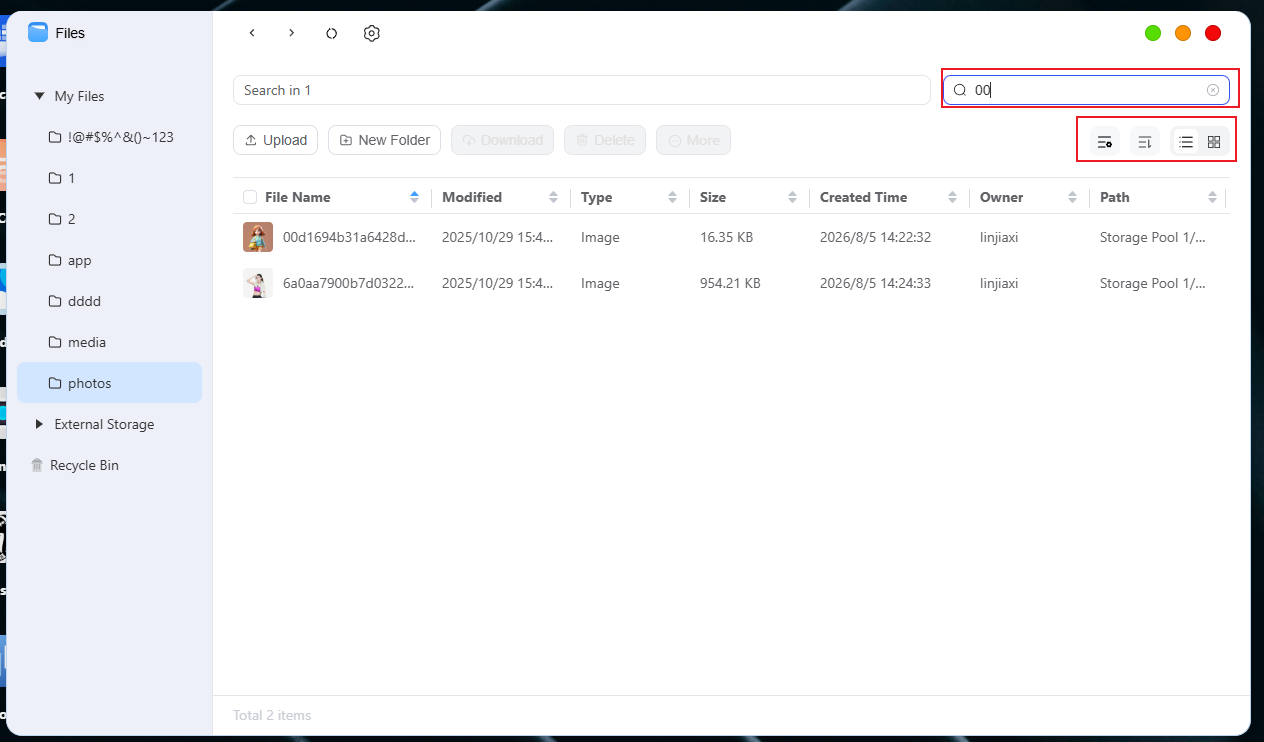
- Locate the search bar in the upper-right corner of the page.
-
Enter a keyword in the search bar, and the system will display matching results.
-
Click a file in the search results to view its details.
-
You can filter results by filename, modification date, type, size, and location.
-
You can also click the view switch button in the upper-right corner of the file list to change the view of the search results list.